
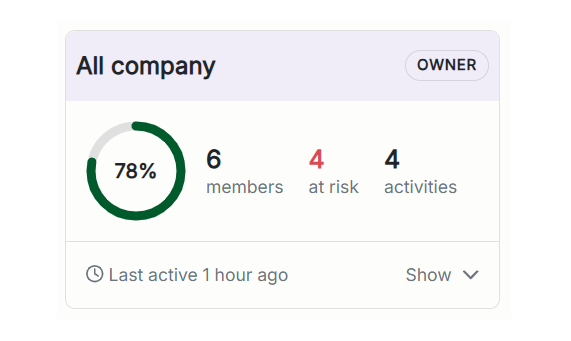
Everyone in one table, before you set anything up
In an organization, administrators and owners get a new All members view at the top of Results & History: every member in one table, completion, activities given, how many are in progress or completed, and when each person was last active. Sort by lowest completion to see who needs a hand, or open a row for the activities behind the numbers. It works before you create a single unit, and it counts the invitations already sent, so the table is not empty on day one.

Remind whoever is behind
Pick the members who are behind, or use Select everyone behind, which takes everyone given at least one activity who has not finished it, and choose Remind. You are shown how many people you are about to mail before anything is sent. The number of e-mails is at least as large, since each person gets one per unfinished activity: someone behind on four activities receives four.
Group members into units
A unit is a part of your organization; a department, a team, a class. Creating one is a name and a member list: open your organization's page, go to Units, then tick its members from everyone already in your organization.
What a unit card shows
Its member count, how many are at risk, and how far the group has come (the share of all its members' tasks that have been answered).
At risk is arithmetic, not a judgement call: the member has answered less than half the tasks in what they have been given. That is a narrower group than Select everyone behind, which takes anyone unfinished at all. And there is no clock in it, so assigning something new puts a whole unit at risk until it is half done.
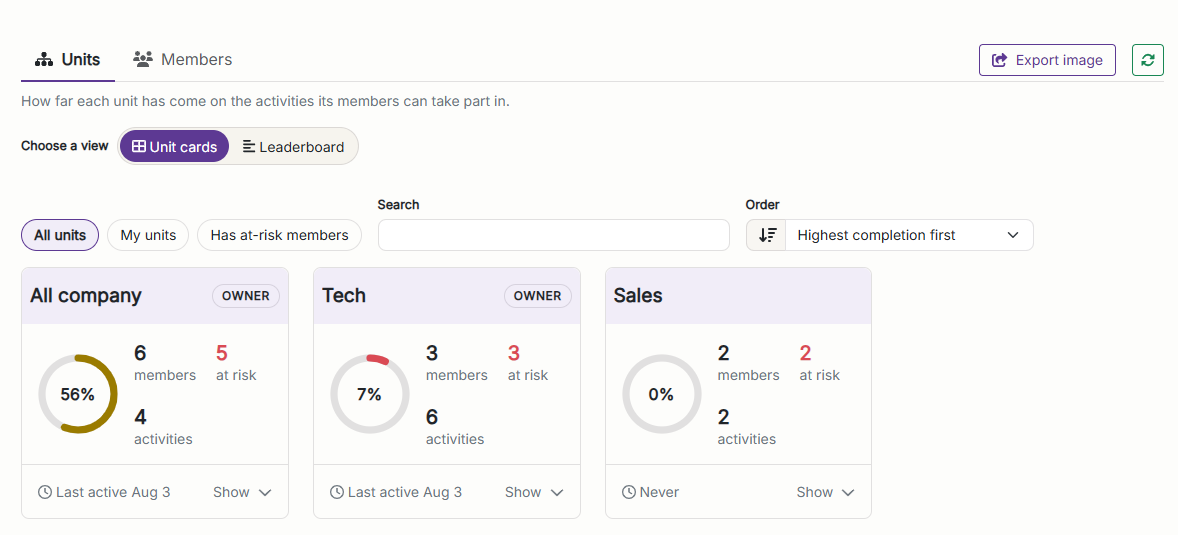 The card is the summary. Open it for the members behind the numbers.
 A leaderboard ranks the units against each other. It is in Studio only, and participants never see it.
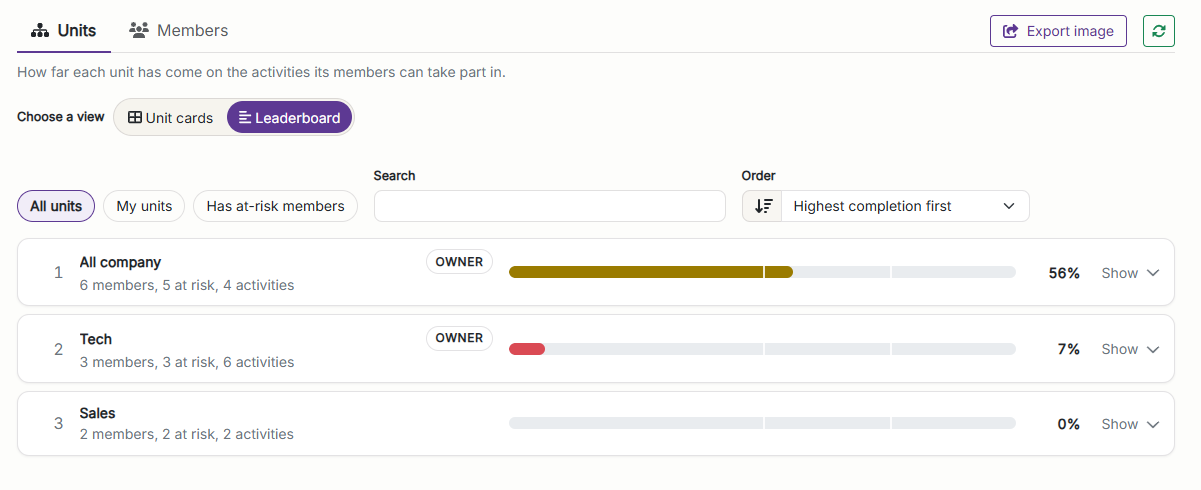 Ranking is for you, not for them.
Assign an activity to a whole unit
On a published activity, open Invitations and choose Assign Unit. You can set when access opens and closes, which a direct invitation cannot do. The window belongs to the assignment, and it does not shorten an invitation someone already has.
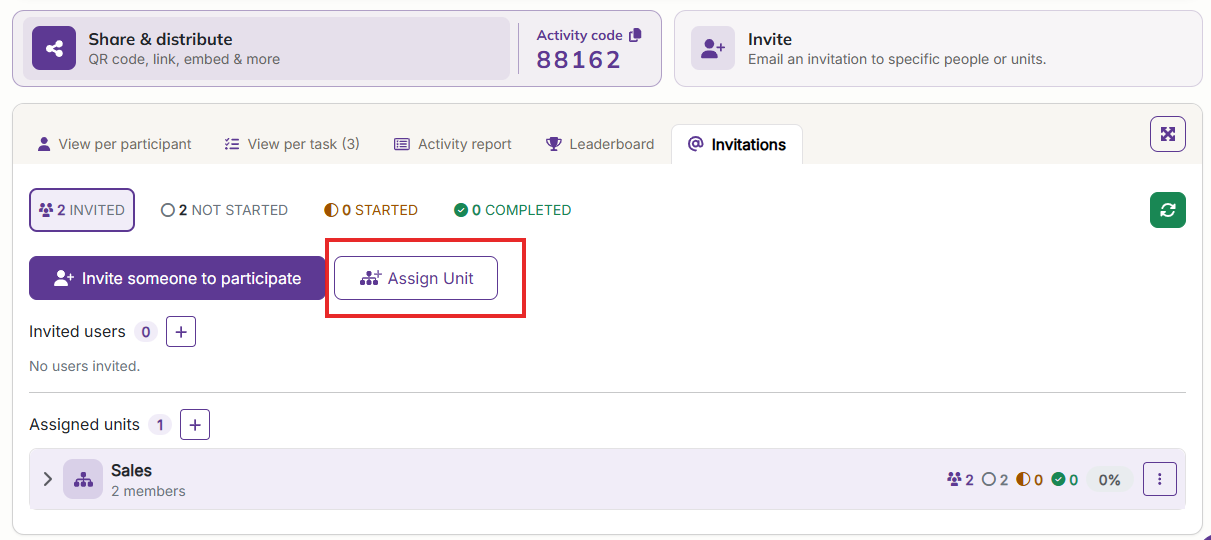 Assign to the unit, not to a list of people. Anyone added later gets the activity too.
The gain is not the saved pasting. You assign to the unit rather than to a list of people, so someone added later gets the activity automatically (and the notification e-mail too if you turned it on). Add someone to a unit with nothing running assigned to it and they are sent nothing at all. A pasted list of addresses is out of date the day after you send it.
Assigning does not replace your direct invitations or hide them. A member's row counts both; activities assigned to their unit and activities they were invited to directly. An activity that reached them both ways is counted once.
Who can see and do what
Administrators and owners see every unit and every member, and the All members table is theirs alone. An instructor sees each unit's numbers, plus every member and the reminders for any unit they own. A unit's owners are set in the unit itself, by adding members and promoting one of them. A unit can have several owners.
Assigning is a separate permission: anyone who can invite to an activity can assign a unit to it, namely the instructor who published it and its co-instructors. It need not go through an administrator.
Where to find it
Activity progress sits at the top of Results & History: the unit cards and the leaderboard on one tab, All members on the other. Units themselves are on your organization's page.